Extract audio from any video
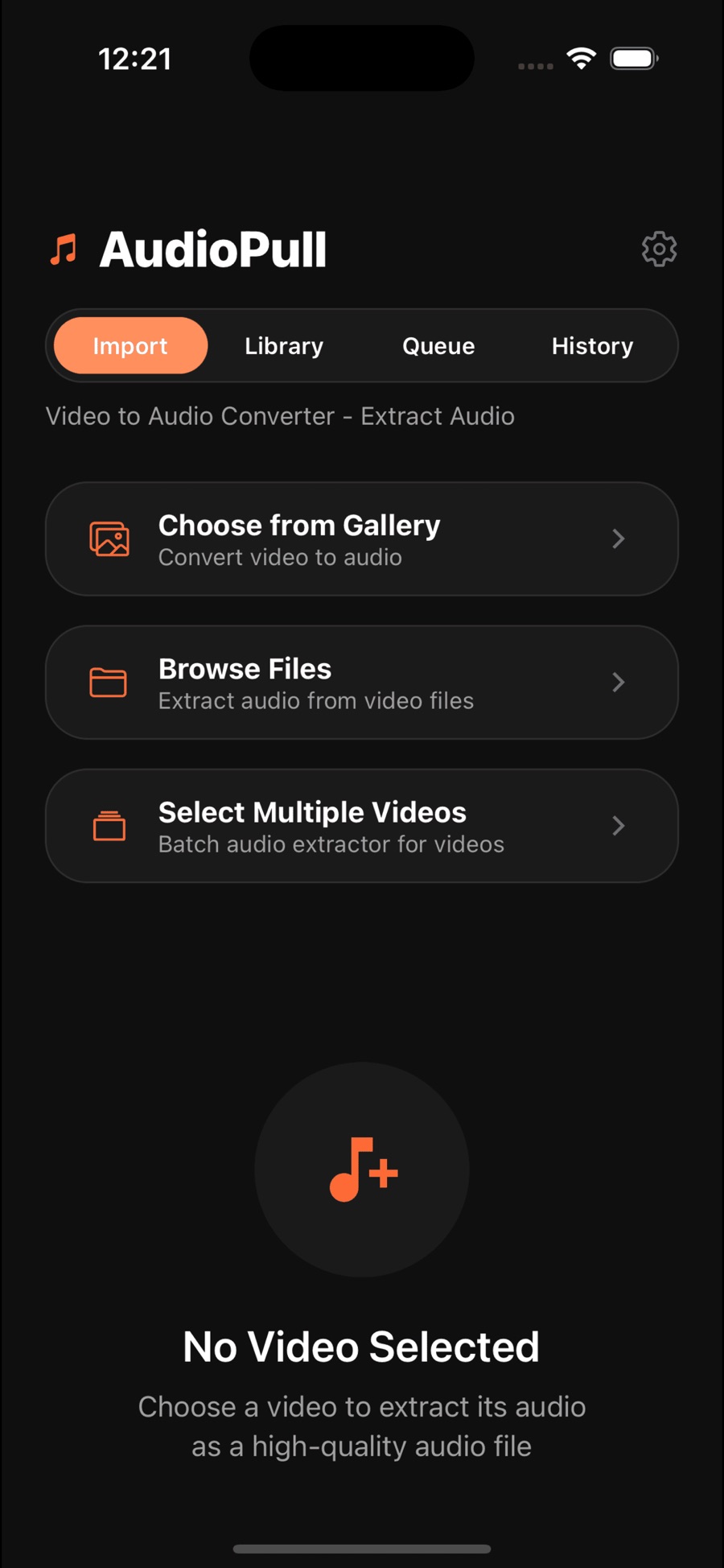
Convert videos from your photo library or files, with support for all major video formats including MP4, MOV, AVI and more.
Video to audio converter for iOS
AudioPull pulls high-quality M4A audio out of your lectures, music videos, interviews and recordings — in batches, in the background, and 100% offline. No uploads, no waiting on servers.
Videos are heavy, awkward to listen to on the go, and most tools that "fix" this want your files uploaded to a stranger's server.
Every feature below ships in the free app, as described on its App Store listing.
Convert videos from your photo library or files, with support for all major video formats including MP4, MOV, AVI and more.
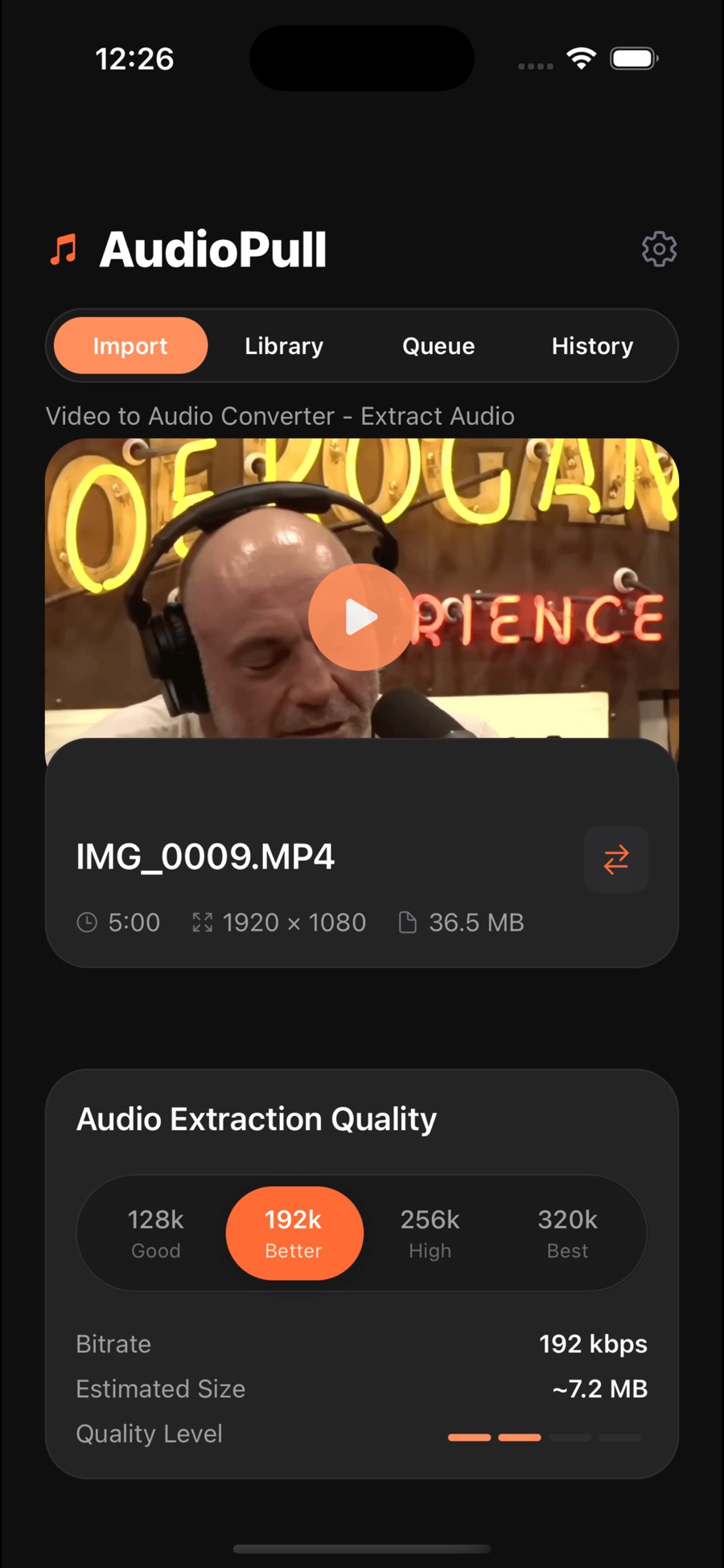
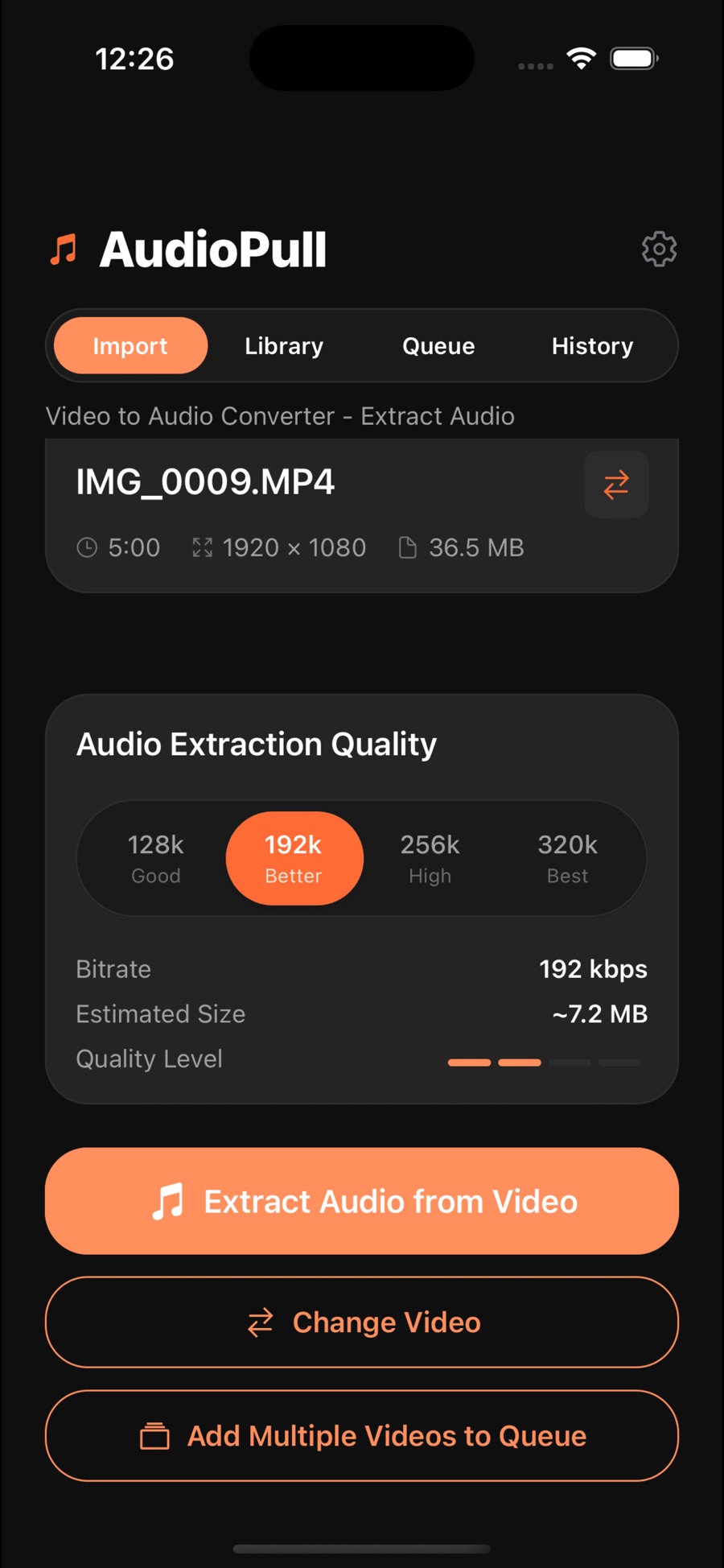
Export audio in M4A format with the AAC codec and choose from multiple bitrate options — 128k, 192k, 256k or 320k — to preserve original audio quality.
Queue multiple videos for extraction and process them efficiently in the background.
Select videos directly from your gallery, preview them before extraction, and track extraction progress in real time.
Automatic duplicate detection, organized storage with detailed metadata, a complete extraction history, and access to your files through the Files app.
AudioPull works entirely offline on your device. No internet connection required and no uploads to servers — all processing happens locally on your iPhone.
Real screens from the app — import, quality, result, library.
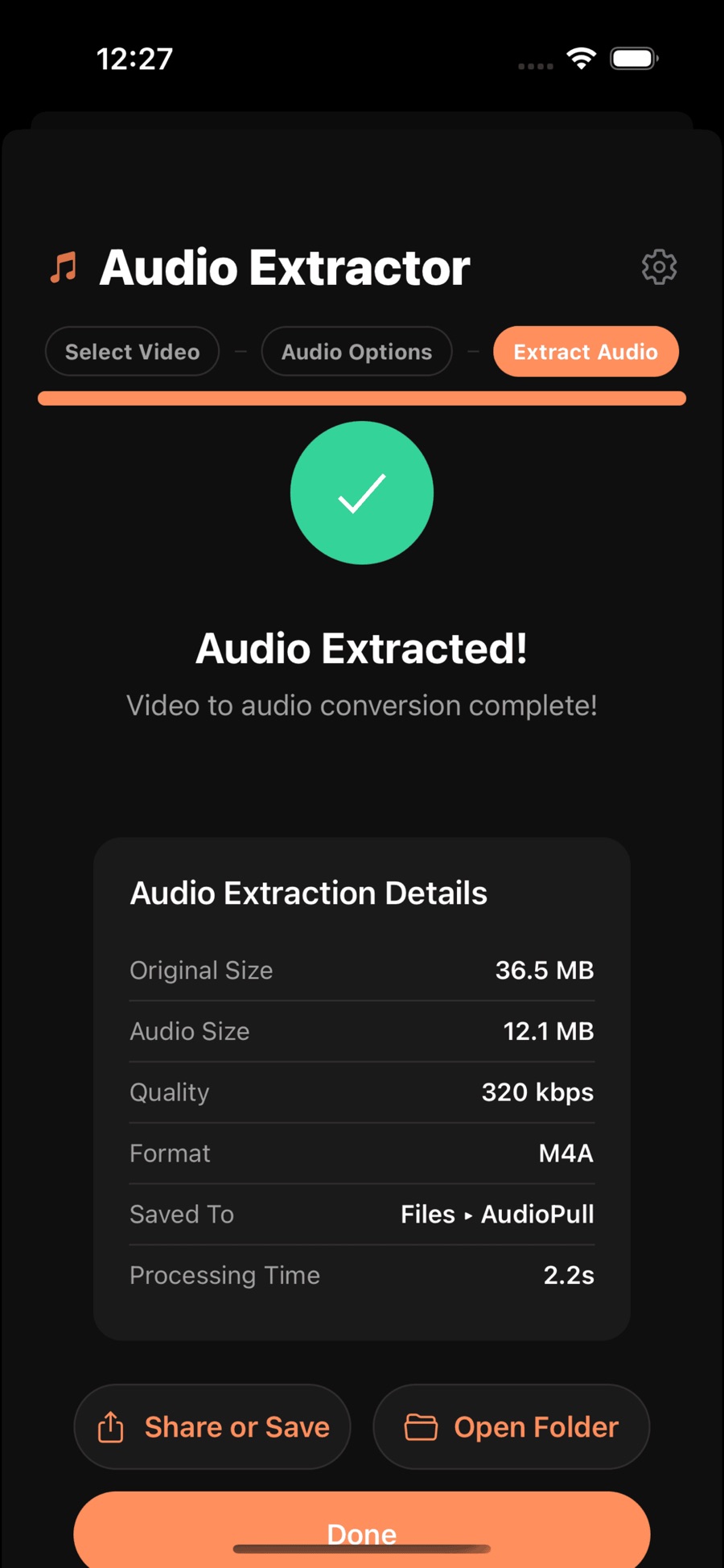
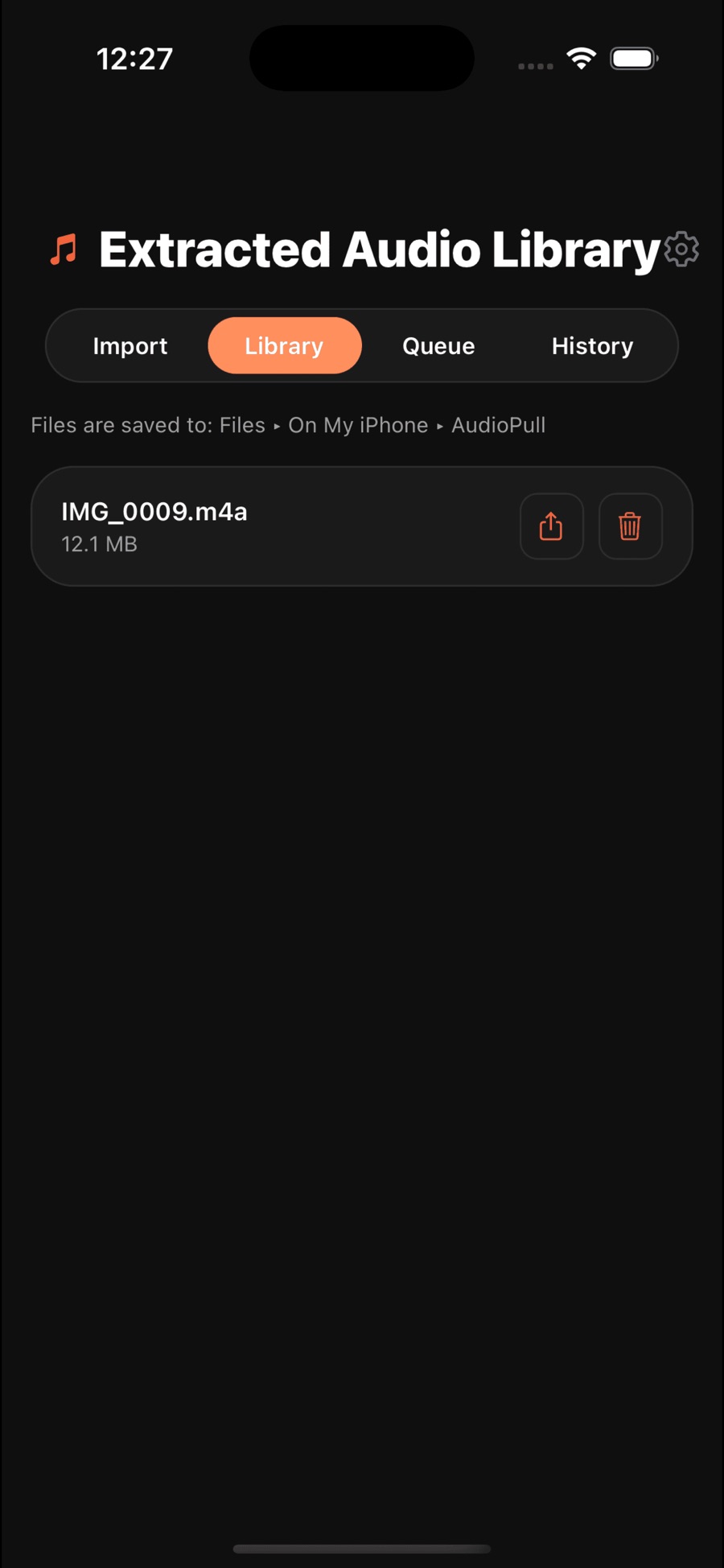
The App Store listing calls these out directly — if you do any of them, AudioPull was built for you.
Extract audio from recorded lectures or presentations, then review them on your commute instead of scrubbing through video.
Convert music videos and live performance recordings into audio files you can keep in your library.
Save podcasts or interviews recorded as video in audio form — smaller files, easier listening.
Pull sound effects, music or dialogue out of video clips, and create audio versions of your video content.
A simple flow built around the capabilities the app ships with.
Yes on iOS: AudioPull is free to download on the App Store and runs on iPhone and iPad with iOS 15.1 or later. On Google Play, the Android version is a $2.99 one-time purchase (US price at time of writing).
AudioPull exports audio in M4A format using the AAC codec. You can choose from four bitrate options — 128k, 192k, 256k or 320k — depending on how you balance quality and file size.
No. AudioPull works entirely offline on your device. No internet connection is required and nothing is uploaded to servers — all processing happens locally on your iPhone.
AudioPull supports all major video formats, including MP4, MOV, AVI and more. You can pick videos from your photo library or from the Files app.
Yes. Batch processing lets you queue multiple videos for extraction. Videos are processed efficiently in the background, with individual and overall progress tracking, and you can skip or retry failed extractions.
Extracted audio is stored in organized files with detailed metadata inside the app, with a complete extraction history. You can access the files through the Files app and share them using the standard iOS share options.
AudioPull is built to preserve the original audio quality from your videos. Choosing a higher bitrate such as 256k or 320k keeps the export closest to the source audio.
Yes. AudioPull is on Google Play for Android as a $2.99 one-time purchase (US price at time of writing), and free on the App Store for iPhone and iPad.
Practical, evergreen reading on audio extraction, formats and workflows.
What audio extraction actually does, your options on iOS, and how to keep quality intact.
Read the guide →AAC, M4A, MP3, and what 128k–320k really means for sound quality and file size.
Read the guide →Why audio-first revision works, and how to convert a semester of lecture videos efficiently.
Read the guide →What happens when you upload files to online converters — and the on-device alternative.
Read the guide →